

Getting Started with Atelier
Atelier is a VS Code extension that visualizes your Claude Code tasks, plans, and todos in one place. It includes a kanban board for tracking work across your project and an editor for reviewing and managing individual items. Use Atelier when you want a birds-eye view of your full backlog, need to track what Claude is working on, or want to drill into the details of a specific plan or task.
Prerequisites
Section titled “Prerequisites”- VS Code, Cursor, or any VS Code-compatible IDE
- Claude Code version 2.1.17 or later
- The Atelier extension installed from the VS Code Marketplace or Open VSX Registry
Install in Cursor
Section titled “Install in Cursor”Atelier is available on the Open VSX Registry, which Cursor uses as its extension marketplace. Search for Atelier in the Cursor Extensions panel to install it directly.
Install Manually
Section titled “Install Manually”- Download the
.vsixfile from the Open VSX Registry - Open the Command Palette with Ctrl + Shift + P (Windows/Linux) or ⌘ + Shift + P (macOS).
- Type Extensions: Install from VSIX and select the command.
- Browse to the downloaded
.vsixfile and select it.
-
Open the Command Palette by pressing Ctrl + Shift + P on Windows/Linux or ⌘ + Shift + P on macOS.
-
Type “Atelier: Show Kanban Board” and select the command from the list.
The kanban board opens, displaying five columns: To Do, Planning, In Progress, In Review, and Done. If this is your first time using Atelier in the current project, you’ll see a “Setup Atelier” card in the To Do column.
- Click on the “Setup Atelier” card to open the sidebar.
The sidebar displays setup instructions and two action buttons: Setup and Customize.
- Click Setup to configure Atelier with recommended defaults, or click Customize to walk through each setting interactively.
Atelier installs the agent skills that Claude Code uses to brainstorm, plan, implement, and verify your work. These include the Brainstorm Skill, Planning Skill, Implement Skill, and Verify Skill. It also configures your workspace settings and file paths. When setup completes, the card automatically moves to the Done column.
-
Familiarize yourself with the board layout:
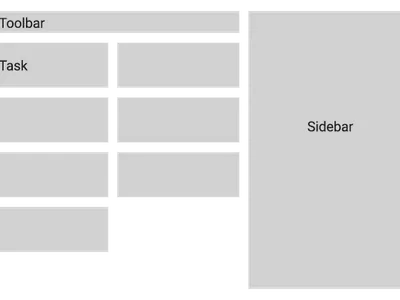
- Toolbar at the top contains filter options and an Add Todo button
- Columns display cards organized by status: To Do, Planning, In Progress, In Review, and Done
- Cards represent todos, plans, or tasks and can be clicked to open the sidebar
- Sidebar shows card details and action buttons relevant to that card’s current status
You now have Atelier set up and ready to use. The board will automatically update whenever you, Claude, or any other process modifies your TODO.md file, plan markdown files, or task JSON files. Your next step is typically to add a todo item to the backlog or promote an existing idea into a plan.
Join the Discord for updates and community support.